Getting started with Site Builder
You've signed up. Here's what to do next.
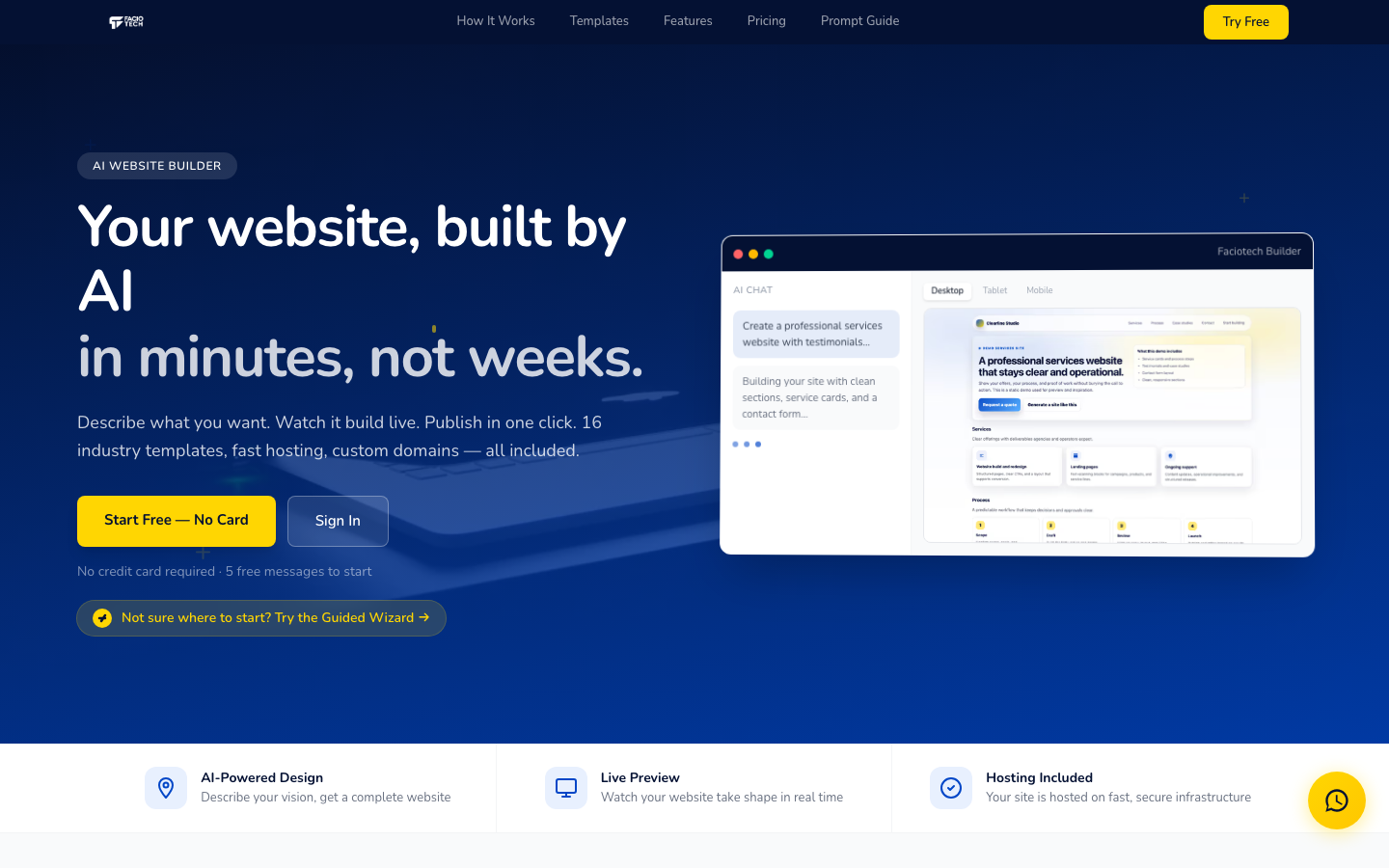
Your first 5 minutes
1. Open the editor
Sign in to your Faciotech account, then either:
- Click "Open Builder" in your welcome email (one-click SSO, no separate password), or
- Go to builder.faciotech.com and we'll route you in.
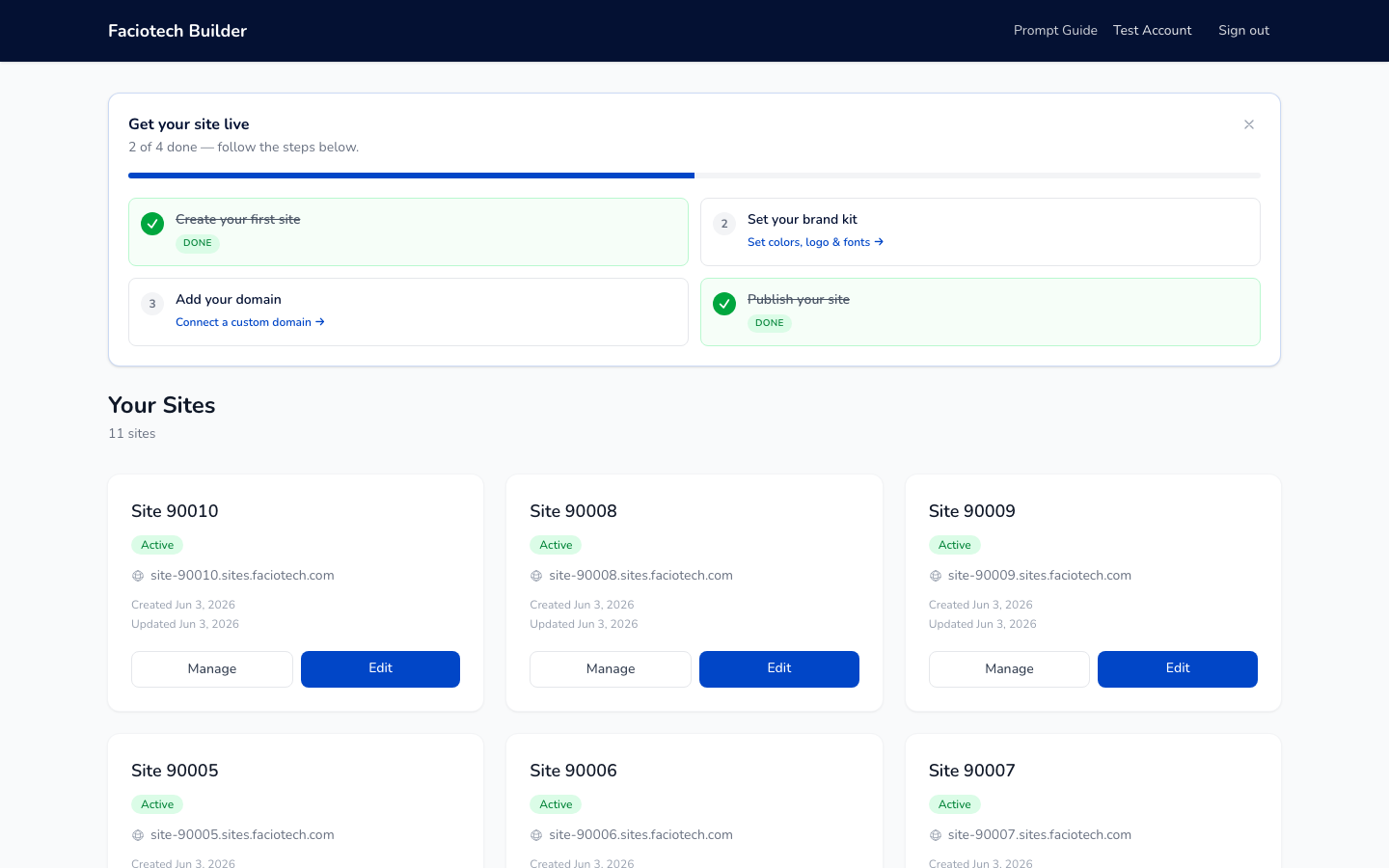
You'll land on your Dashboard showing all your sites:
2. Describe your business
Click into a site to open the editor. The chat panel is on the left; the live preview is on the right.
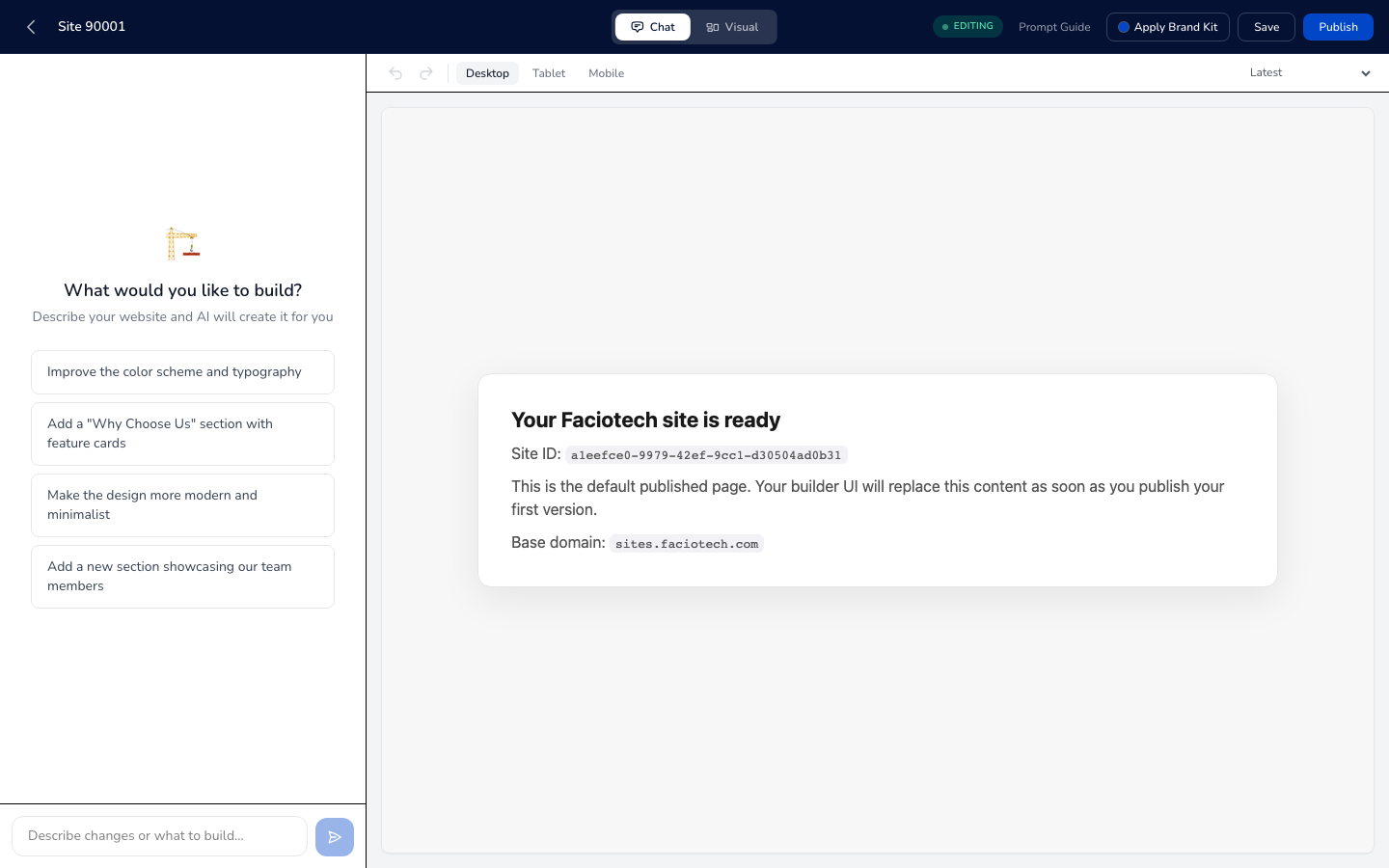
Type one sentence about who you are and what you do. Examples:
- "I run a salon in East Legon, Accra, specializing in natural hair."
- "I'm a wedding photographer based in Kumasi, available for travel."
- "My church is in Adenta — we have Sunday services at 9 and 11."
Press Enter. The AI generates a complete six-page site in about 30 seconds.
3. Refine visually
Use the drag-and-drop editor on the right:
- Click any text to edit inline.
- Drag images to swap them.
- Change colors with the brand picker (top right).
- Add/remove sections from the toolbar (left side).
Every change auto-saves. Use the version history button (clock icon) to roll back to any previous draft.
4. Publish
When you're ready, click Publish (top right). Your site goes live immediately on:
- A free
*.builder.faciotech.comsubdomain (great for sharing previews), or - Your own custom domain — see Connecting a custom domain.
Common starter questions
| Question | Answer |
|---|---|
| Can I redo the AI generation? | Yes — each AI message uses 1 of your monthly quota. Track usage. |
| Are my changes saved? | Auto-saved every few seconds. Use version history to roll back. |
| Can I work on multiple sites? | Yes, depending on plan — Starter = 1 site, Creator = 3, Pro = 5, Business = 10, Business+ = 25, Commerce/Agency/Enterprise = unlimited. |
| Do I need a domain to start? | No. Every site gets a free preview subdomain. Connect a custom domain whenever you're ready. |